
About
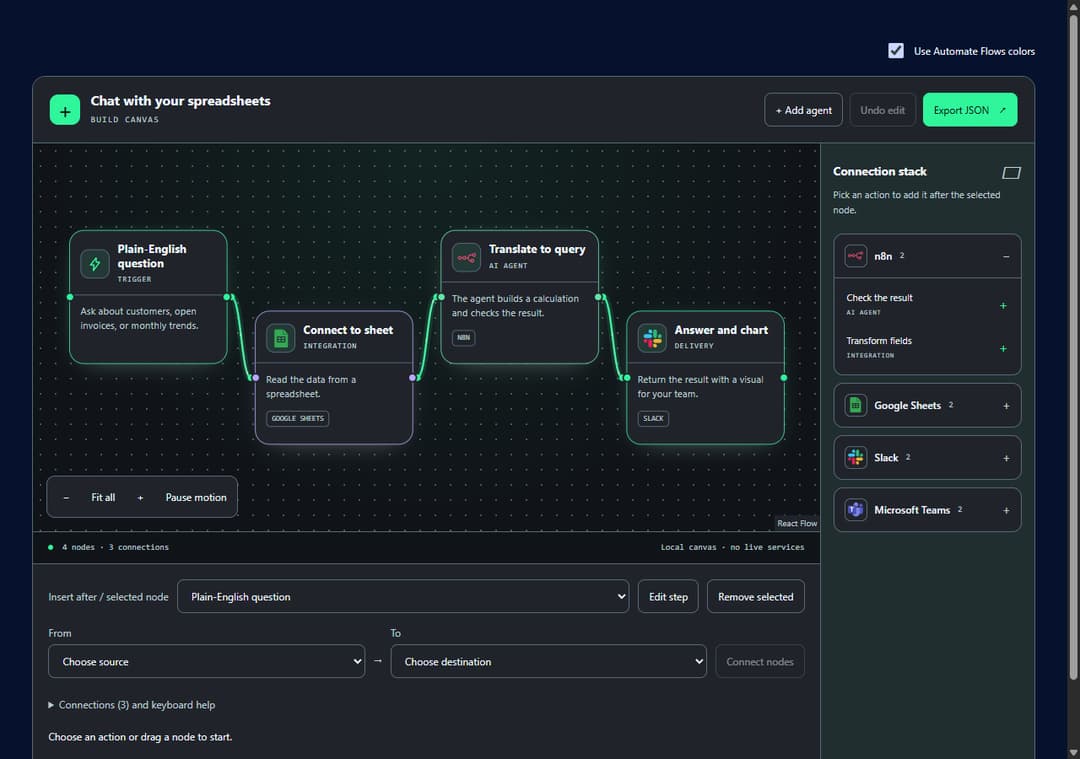
An interactive workflow canvas for showcasing and planning automations. Add and edit agents, drag steps, connect actions, undo changes, and export the example as JSON.
Built with React and Tailwind. Copy the prompt and paste it into Claude Code, Cursor or Lovable: your agent adds Interactive Workflow Blueprint to your project and fits it to your theme.
Code
How Interactive Workflow Blueprint is used: the demo's code. The component's own source comes with a free account.
Usage.tsx
"use client";

import WorkflowBlueprint, { type WorkflowApp, type WorkflowGraph } from "@/components/ui/interactive-workflow-blueprint";
import { useState } from "react";

const graph: WorkflowGraph = {
  nodes: [
    { id: "question", type: "blueprint", position: { x: 20, y: 60 }, data: { label: "Plain-English question", detail: "Ask about customers, open invoices, or monthly trends.", kind: "trigger" } },
    { id: "sheet", type: "blueprint", position: { x: 250, y: 160 }, data: { label: "Connect to sheet", detail: "Read the data from a spreadsheet.", kind: "integration", tool: "Google Sheets", logo: "https://cdn.simpleicons.org/googlesheets/34A853" } },
    { id: "query", type: "blueprint", position: { x: 480, y: 60 }, data: { label: "Translate to query", detail: "The agent builds a calculation and checks the result.", kind: "agent", tool: "n8n", logo: "https://cdn.simpleicons.org/n8n/EA4B71" } },
    { id: "answer", type: "blueprint", position: { x: 710, y: 160 }, data: { label: "Answer and chart", detail: "Return the result with a visual for your team.", kind: "delivery", tool: "Slack", logo: "https://cdn.21st.dev/assets/mirror/17/17160477a475166ad0556e0028e3b0bd0634d70c02e7b920c04a4429ea184ab3.svg" } },
  ],
  edges: [
    { id: "question-sheet", source: "question", target: "sheet" },
    { id: "sheet-query", source: "sheet", target: "query" },
    { id: "query-answer", source: "query", target: "answer" },
  ],
};
const apps: WorkflowApp[] = [
  { id: "n8n", name: "n8n", logo: "https://cdn.simpleicons.org/n8n/EA4B71", actions: [
    { label: "Check the result", detail: "Review the calculation before sharing the answer.", kind: "agent", tool: "n8n" },
    { label: "Transform fields", detail: "Map incoming fields into a consistent record.", kind: "integration", tool: "n8n" },
  ] },
  { id: "sheets", name: "Google Sheets", logo: "https://cdn.simpleicons.org/googlesheets/34A853", actions: [
    { label: "Read spreadsheet", detail: "Get the rows needed to answer a question.", kind: "integration", tool: "Google Sheets" },
    { label: "Add a row", detail: "Write an approved result back to a sheet.", kind: "delivery", tool: "Google Sheets" },
  ] },
  { id: "slack", name: "Slack", logo: "https://cdn.21st.dev/assets/mirror/17/17160477a475166ad0556e0028e3b0bd0634d70c02e7b920c04a4429ea184ab3.svg", actions: [
    { label: "Share an answer", detail: "Post the result to the team channel.", kind: "delivery", tool: "Slack" },
    { label: "Request a review", detail: "Ask a teammate to check the result.", kind: "review", tool: "Slack" },
  ] },
  { id: "team", name: "Microsoft Teams", logo: "https://cdn.21st.dev/assets/mirror/dc/dc9c217d638da30d35138cfdab49633d9ee1e0d0c74252e43571039632147aff.svg", actions: [
    { label: "Request approval", detail: "Send a decision to your team for review.", kind: "review", tool: "Microsoft Teams" },
    { label: "Post update", detail: "Share a concise status in the project channel.", kind: "delivery", tool: "Microsoft Teams" },
  ] },
];

export default function WorkflowBlueprintDemo() {
  const [brandPreset, setBrandPreset] = useState(false);
  return <div className="wb-demo-shell" style={{ width: "100%", minWidth: 0, background: "var(--color-background, Canvas)", padding: "clamp(12px, 3vw, 40px)", boxSizing: "border-box" }}>
    <style>{`.wb-demo-shell{color-scheme:light}.dark .wb-demo-shell,[data-theme="dark"] .wb-demo-shell{color-scheme:dark}`}</style>
    <label style={{ display: "flex", justifyContent: "flex-end", alignItems: "center", gap: 9, minHeight: 44, marginBottom: 8, font: "inherit", fontSize: 12, color: "var(--color-foreground, CanvasText)", cursor: "pointer" }}>
      <input type="checkbox" checked={brandPreset} onChange={e => setBrandPreset(e.target.checked)} style={{ width: 18, height: 18, accentColor: "var(--color-primary, Highlight)" }} />
      Use Automate Flows colors
    </label>
    <WorkflowBlueprint title="Chat with your spreadsheets" initialGraph={graph} apps={apps}
      style={!brandPreset ? undefined : {
        "--color-background": "light-dark(#f5f8ff,#101418)", "--color-foreground": "light-dark(#10244a,#f1f7ff)",
        "--color-card": "light-dark(#ffffff,#20242a)", "--color-muted-foreground": "light-dark(#52647f,#bfced5)",
        "--color-border": "light-dark(#b1bed3,#596979)", "--color-primary": "light-dark(#007647,#2ff59b)",
        "--color-primary-foreground": "light-dark(#ffffff,#08120d)", "--color-chart-2": "light-dark(#087e55,#62e6a8)",
        "--color-chart-3": "light-dark(#7041b0,#bca7ff)",
      } as import("react").CSSProperties} />
  </div>;
}
Dependencies
More by Troy Lorents
View all
Glassy Coverflow Carousel
79
Dimensional Workflow Hero